Pardot progressive profiling is a game-changer for businesses looking to better understand and engage with their leads. This powerful feature within Salesforce’s Pardot marketing automation platform enables you to collect valuable information about your leads over time, without overwhelming them or sacrificing their user experience.
In this article, we’ll explore the benefits of progressive profiling, discuss how it works, and provide step-by-step guidance on setting up this feature for your business. By the end, you’ll have a solid understanding of how Pardot progressive profiling can help you tailor your marketing efforts and ultimately drive better results.
Creating or Editing a Form
The first step is to edit an existing form or create a new one. When creating forms ask for the most important information first, and then gradually add more fields as the lead interacts with your website or marketing materials.
To start editing your form click on the Content tab on the primary menu.

Accessing the Forms Tab
Next click on the Forms tab on the side menu.
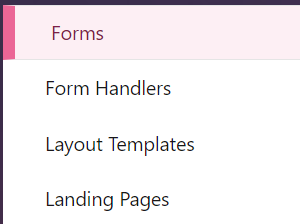
Selecting the Desired Form for Editing
Now select the form that you want to edit by clicking on the title of that form. Next click on the Edit form on the top right of the screen.

Navigating to the Fields Tab
Now select the (2) Fields tab at the top of the screen.
Adding a New Field to the Form
Click on the + Add New Field button.

Creating a City Field for Geographical Information
In this example, we will create a City field for our form. We want to find out more geographical information about our lead so we can better target our marketing. First we want to know which country they are located in. Asking for both the country and city might be overwhelming if we request both pieces of information on a single form. But, if we already know what country the lead is located in, then we would like to narrow down to what city they live in.
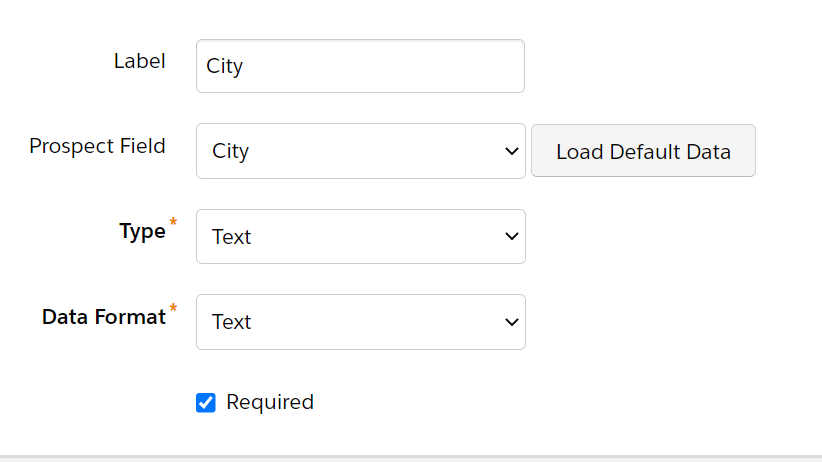
Editing the Newly Created Field
Once you have created your field and saved it, then select the pencil icon next to that field.

Accessing the Progressive Tab
Now from the tabs at the top of the screen click on the Progressive tab.
Enabling Progressive Display for the Field
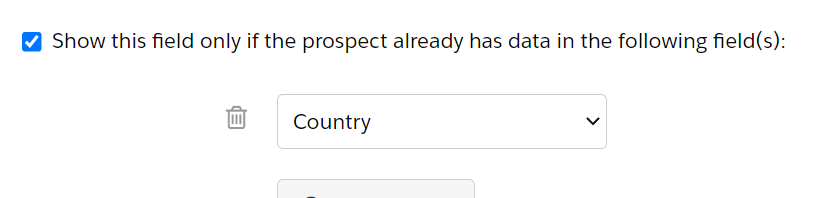
Check the box which asks if the field should only be shown if data has already been provided.

Setting the Conditional Display to Country Field
We only want to request the lead city information, if we already know what country they are located in. So from the drop down menu choose the Country field.
Saving Changes to Complete Progressive Profiling Setup
Finally, click Save changes to finish setting up the progressive profiling.

In conclusion, Pardot progressive profiling is a must-have feature for any business looking to deepen their understanding of their leads while providing a more personalized and less intrusive experience. By implementing this strategy, you can gather the information you need to better segment and target your leads, ultimately leading to more effective marketing campaigns and higher conversion rates.