Pardot’s dependent fields feature is a powerful tool that lets you show or hide certain form fields based on the value of another field. This makes your forms more dynamic and user-friendly by displaying only the relevant fields and reducing unnecessary questions. Dependent fields are particularly useful for complex forms or surveys, as they break down the form into smaller, manageable sections, reducing user frustration and improving completion rates. Overall, this feature is an effective way to optimize your forms and increase their effectiveness in lead generation and customer engagement.
For instance, you can ask if visitors are bringing a guest in an event registration form, and only display the field for the guest’s name if they answer “Yes”. By setting up two fields on the form and configuring the visibility of the guest’s name field to be dependent on the “Bringing a guest” field, you can make your form more dynamic and relevant to the user.
How to use dependent fields in Pardot forms
Follow these steps to set up dependent fields for your own Pardot forms.
Go to your form in Pardot

- Add a new field called “State”

- Go to the “Advanced” tab and click on “Add Dependency”

- Set up the dependency by selecting the field that you want to be the trigger, in this case “Country” and then set the condition, in this case if they select “United States”
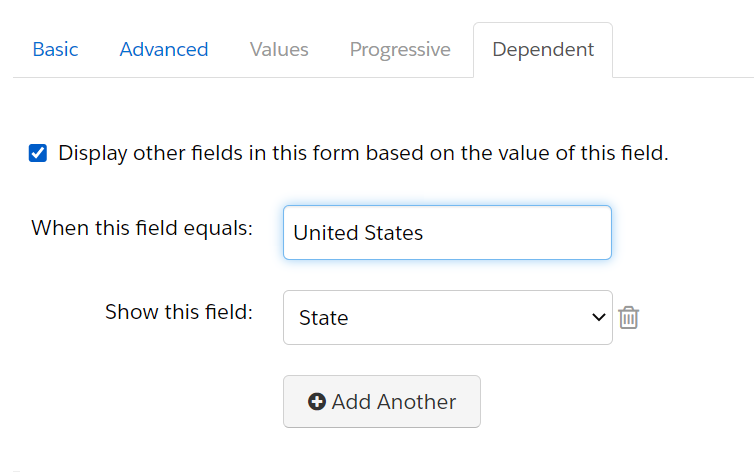
- Save the form and now when someone visits your page and select “United States” on the “Country” field, the “State” field will appear.
By using dependent fields, you can gather more information from people who are interested in certain options, without overwhelming everyone with a lot of unnecessary fields. It’s a great way to make your forms more efficient and user-friendly!